
Calendar Setup Guide
Add your calendars to peeq in seconds
Connect Google or Microsoft (Recommended)
The easiest way to add calendars is to connect your Google or Microsoft account directly. Just sign in, select the calendars you want, and you're done — no URLs to copy or settings to find.
- One-click setup — Sign in and select your calendars
- Automatic sync — Events update in the background
- Multiple calendars — Choose exactly which calendars to display
- Multiple accounts — Connect personal and work accounts from the same provider
- Secure — OAuth 2.0 authentication, no passwords stored
To connect your account:
- Go to Profile → Linked Accounts
- Click Connect Google Calendar or Connect Microsoft Outlook
- Sign in with your account and grant calendar access
- Select which calendars to import to your dashboard
You can add more calendars anytime from Linked Accounts. You can also connect additional accounts from the same provider (e.g., personal + work Google accounts).
Alternative: Add Calendars by URL
For calendars that don't support direct connection (school calendars, sports schedules, etc.), you can add them using their ICS feed URL.
What's an ICS URL?
An ICS feed URL (also called an iCal URL or webcal link) is a special URL that provides your calendar events in a standard format. You'll need to find this URL in your calendar service's settings.
Once you have the URL, paste it into peeq's Add Calendar form:
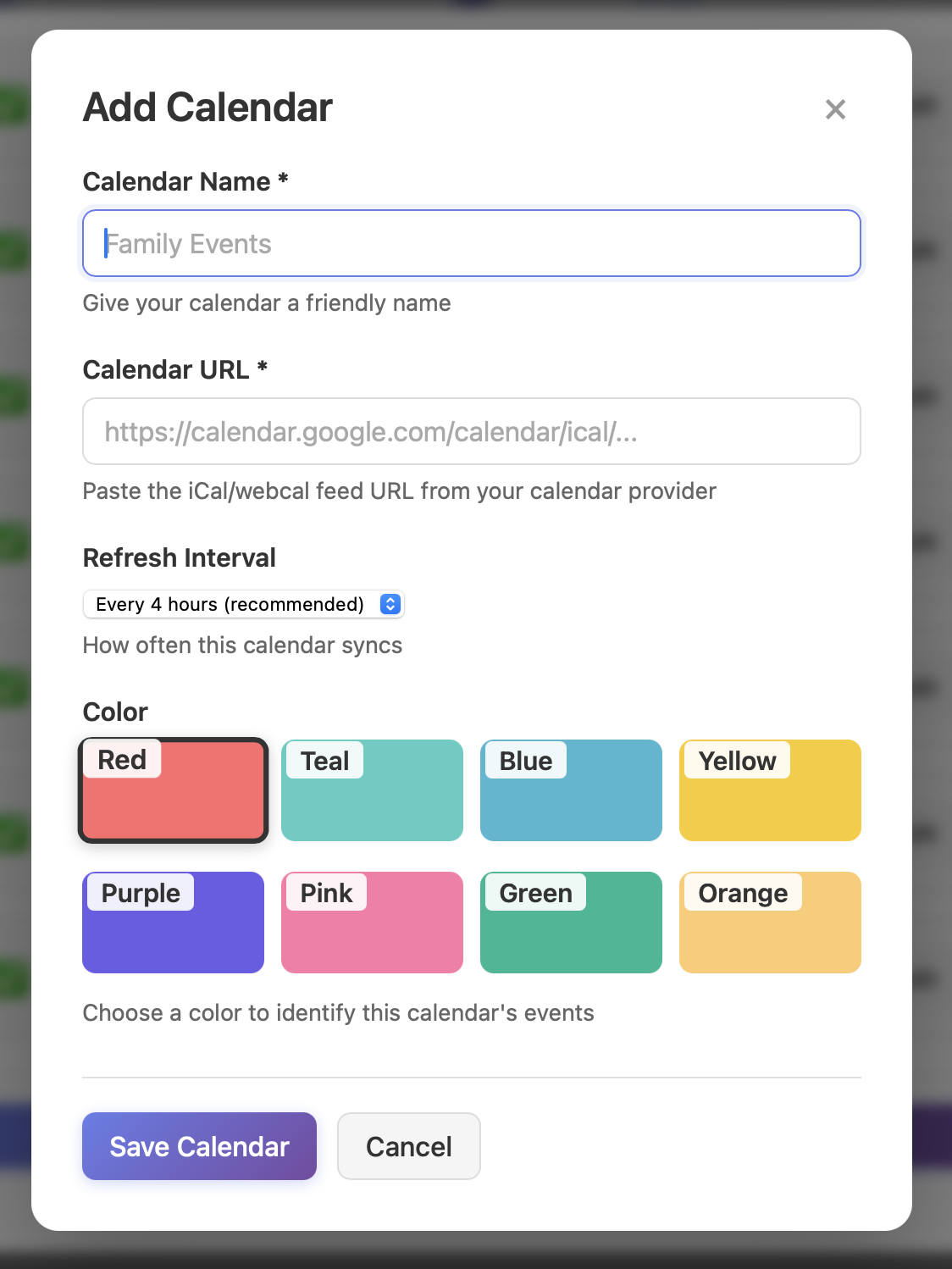
Use calendar-specific feeds rather than sharing your entire account. You can add multiple calendars from different sources to create your complete dashboard.
Google Calendar (via ICS URL)
Instead of copying URLs, you can connect your Google account directly. It's faster and your calendars will sync automatically.
- Open Google Calendar in a web browser (not the mobile app)
-
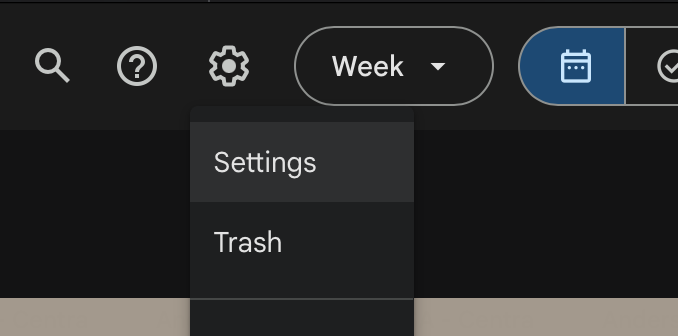
Click the Settings gear icon in the top right, then Settings
-
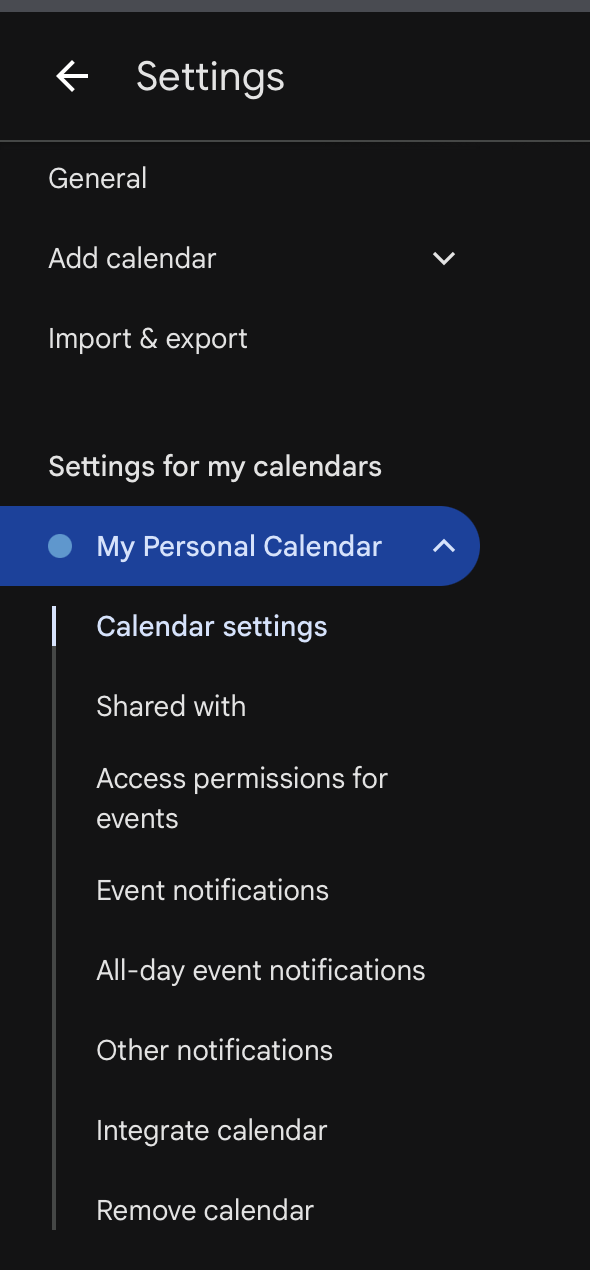
In the left sidebar under "Settings for my calendars", find and click the calendar you want to share
-
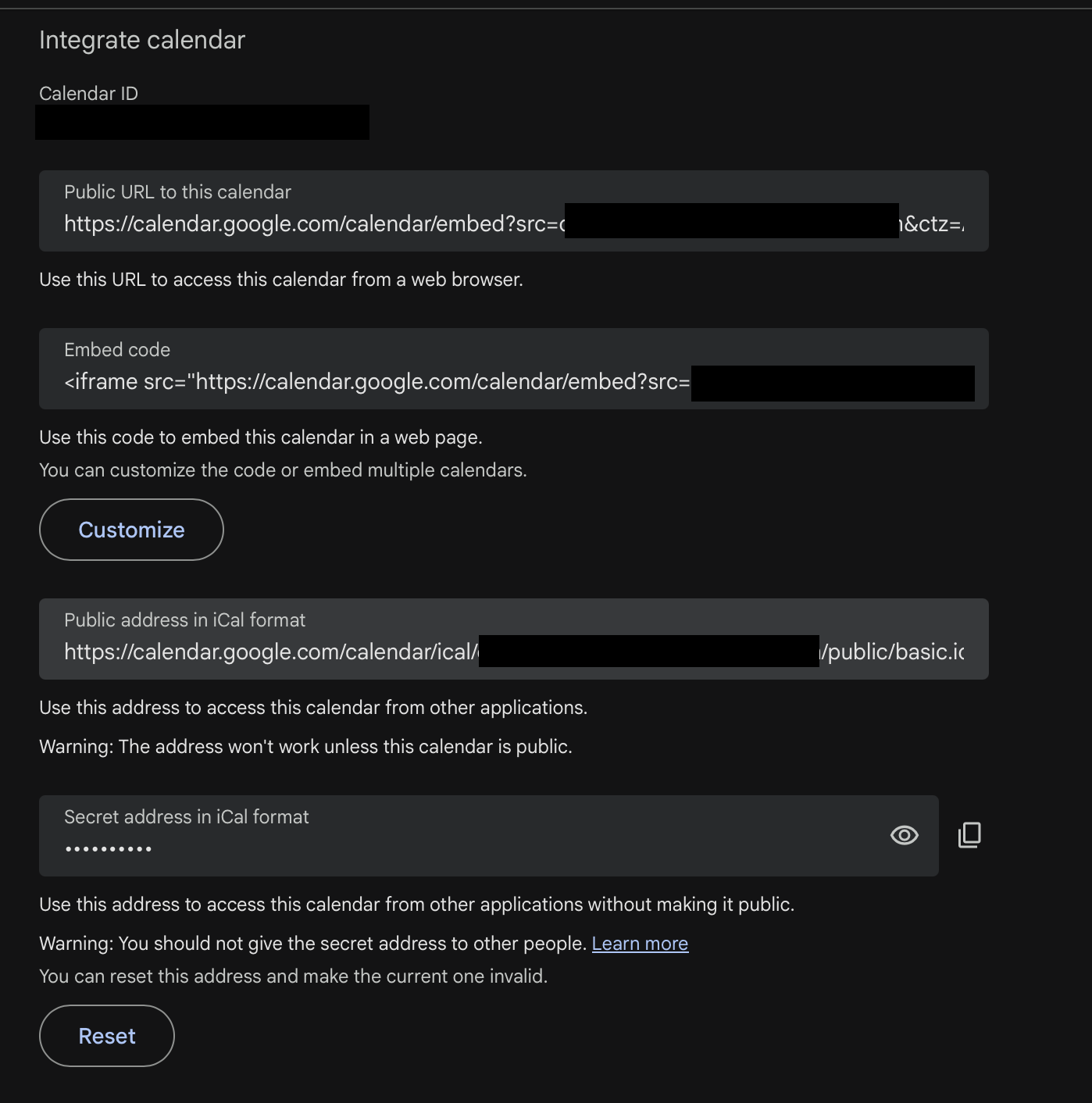
Scroll down to the "Integrate calendar" section
-
Copy the "Secret address in iCal format" URL
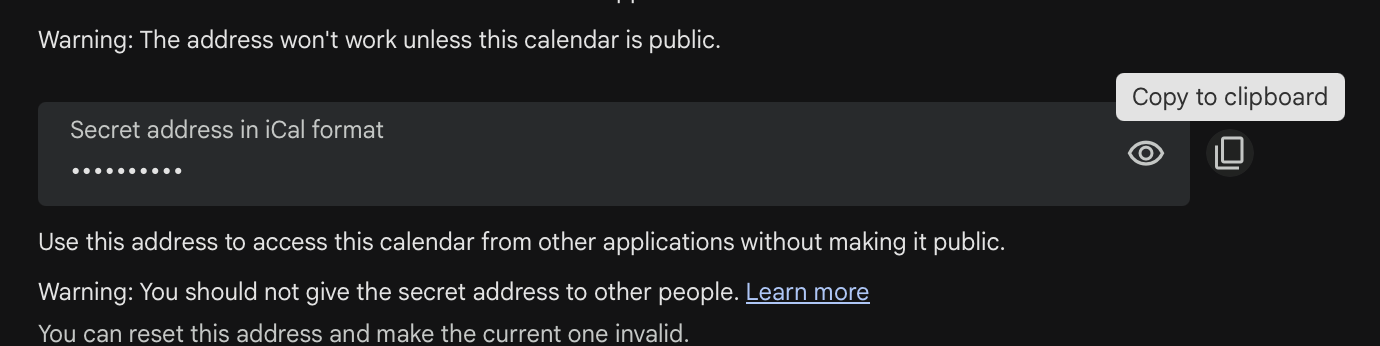
- Paste this URL when adding a calendar to peeq
Use the secret address, not the public one. The secret address includes a private key that allows peeq to access your calendar. Don't share this URL publicly.
Microsoft Outlook / Office 365 (via ICS URL)
Instead of publishing calendars, you can connect your Microsoft account directly. It's faster and your calendars will sync automatically.
- Open Outlook Calendar in a web browser
- Click the gear icon in the top right, then View all Outlook settings
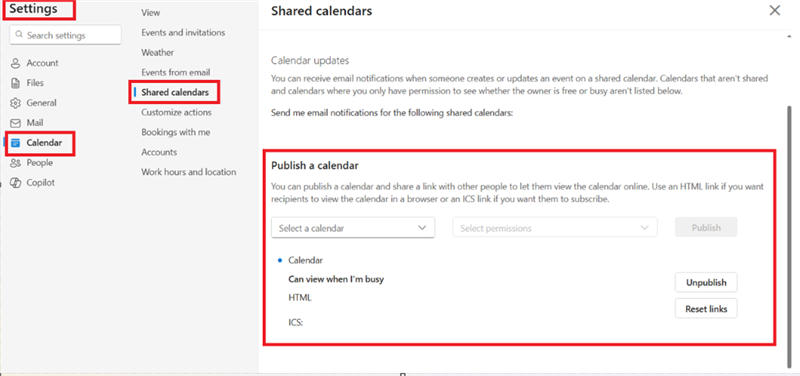
- Go to Calendar → Shared calendars
- Under "Publish a calendar", select the calendar you want to share
- Choose "Can view all details" for permissions
- Click Publish
- Copy the ICS link (not the HTML link)
- Paste this URL when adding a calendar to peeq
Apple iCloud Calendar
- Open iCloud Calendar in a web browser
-
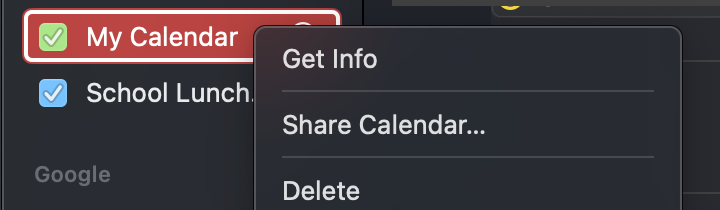
Hover over the calendar you want to share and click the share icon
-
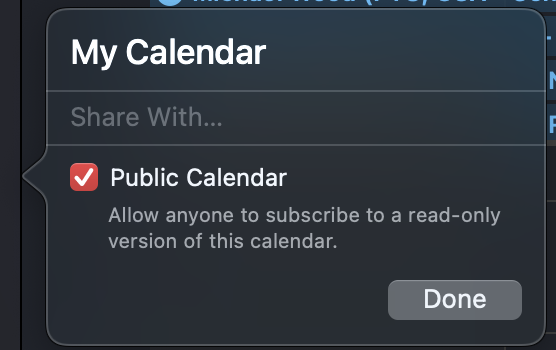
Check the "Public Calendar" checkbox
-
Click Copy Link to copy the URL
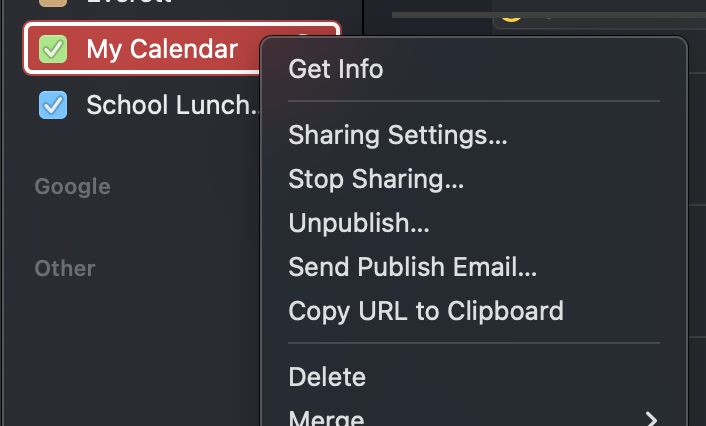
- Paste this URL when adding a calendar to peeq
The URL might start with webcal://. That's fine — peeq handles both
webcal:// and https:// URLs.
Fastmail
- Open Fastmail and go to Settings → Calendars
- Click on the calendar you want to share
- Enable "Share with a link"
- Copy the ICS subscription URL
- Paste this URL when adding a calendar to peeq
Other Calendar Services
Most calendar services offer an iCal feed, ICS link, or calendar subscription URL. Look for these options in your calendar's settings:
- "Share" or "Sharing"
- "Publish calendar"
- "Subscribe" or "Subscription URL"
- "Export" (sometimes leads to ICS options)
- "Integrate" or "Integration"
The URL typically ends in .ics or contains words like "ical", "webcal", or "subscribe".
Work/School Calendars (Exchange/O365)
Many organizations use Microsoft Exchange or Office 365. You have a few options:
Option 1: Connect your Microsoft account
If your organization allows it, you can connect your Microsoft work account directly. This works well for many Office 365 organizations.
Option 2: Publish as ICS feed
- Use the Outlook Web App (outlook.office.com) to publish your calendar
- Ask IT if calendar sharing/publishing is enabled for your organization
- Some organizations disable ICS publishing for security reasons
If neither option works, try syncing your work calendar to a personal Google Calendar, then connect your Google account to peeq.
Sports Team Calendars
Many sports leagues and team management apps provide calendar feeds:
- TeamSnap: Team Settings → Sync Calendar → Copy the iCal feed URL
- SportsEngine: Look for "Subscribe" or "Add to Calendar" options
- LeagueApps: Check team or schedule settings for iCal links
School Calendars
Many schools publish their calendars as ICS feeds:
- Check your school's website for a "Subscribe" or "Add to Calendar" option
- Look in parent portal apps for calendar sync options
- Some districts publish district-wide event calendars you can subscribe to
Troubleshooting
- Make sure you copied the entire URL (they can be long)
- Try accessing the URL directly in your browser — it should download or display calendar data
- Check that you used the ICS/iCal link, not an HTML link
- For Google, make sure you used the "secret" address
Some services regenerate feed URLs periodically for security. If your calendar stops syncing, try getting a new feed URL from the source and updating it in peeq.
If you're having trouble finding your calendar's ICS feed, email us at help@peeq.day with the name of your calendar service and we'll try to help.